.png)
How to set up indirect rates in GovBooks

In government contracting, indirect rates are the essential mechanism used to recover non-billable operating expenses—such as rent, insurance, and corporate management—that cannot be charged directly to a specific project.
Contractors typically organize these expenses into three primary pools—Fringe Benefits, Overhead, and General & Administrative (G&A)—which are then divided by an allocation base to determine the rate percentage applied to contracts.
Proper calculation and application of these rates are critical for maintaining profitability and ensuring compliance with the Federal Acquisition Regulation (FAR) Part 31 during Defense Contract Audit Agency (DCAA) audits.
Throughout the fiscal year, these rates progress from provisional estimates used for billing to final, audited figures that determine whether adjustments are owed to or from the government.
How is GovBooks Different from Other Allocation Systems?
GovBooks allows you to create thousands of custom allocations by creating up to 10 fringe pools, 10 overhead pools, 10 facility pools, 10 service center pools and a G&A pool. GovBooks handles the allocation of overhead to B&P and IR&D labor automatically. Indirect pools and allocation bases can be refined easily by including or excluding general ledger accounts. Overhead can be allocated either with a 2-tier or 3-tier method.
Step 1: DCAA-compliant chart of accounts
Before you can begin to calculate indirect rates, you will need to set up a DCAA-compliant chart of accounts in QuickBooks Online. The chart of accounts will be imported from QuickBooks Online into GovBooks where the indirect rate set up will take place.
To learn more about how to set up a DCAA-compliant chart of accounts in QuickBooks Online, you may want to refer to this article:
Step 2: Import the chart of accounts
Import the chart of accounts from QuickBooks Online into GovBooks. Click on "QBO Sync" on the left-hand menu. Select a range of data to import. If this is your first import, you will want to select "All Dates" to import all transactions and elements into GovBooks. To start the import, click on the "Import data from QB Online" button. A message will appear when completed. This may take several minutes for larger company files.

Step 3: Set up fringe pools
Click on "Rates" on the left-hand menu to open the Rates module and then click on "Pool Setup Wizard". Next, click on "Fringe Pools" to set up the fringe pools. If you don't have a fringe pool (uncommon) you can skip this screen and go the next tab. If you have more than one fringe pool, click on "Yes" to the last question which is "Is there a second fringe expense pool allocated based on labor?". You may add up to 10 fringe pools.

Step 4: Set up facilities pools
In the "Facilities Pools" tab, complete the requested information. A facility pool is not required. If you don't have a facility pool (uncommon) you can skip this screen and go the next tab. If you have more than one facility pool, click on "Yes" to the last question which is "Is there a second facility expense pool allocated to other indirect pools?". You may add up to 10 facility pools.

Step 5: Set up overhead pools
In the "Overhead Pools" tab, complete the requested information. An overhead pool is not required. If you don't have an overhead pool (uncommon) you can skip this screen and go the next tab. The default allocation method is 2-tier but you may change this to 3-tier with the dropdown field for "How should fringe expense associated with direct labor and/or B&P/IR&D labor be allocated". If you have more than one overhead pool, click on "Yes" to the last question which is "Is there a second overhead expense pool allocated based on labor?". You may add up to 10 overhead pools.

Step 6: Set up value-added pools
In the "Value-added Pools" tab, complete the requested information. A value-added pool is not required. If you don't have a value added pool you can skip this screen and go the next tab. If you have more than one value-added pool, click on "Yes" to the last question which is "Is there a second value-added expense pool?". You may add up to 10 value-added pools.

Step 7: Set up service center pools
In the "Service Center Pools" tab, complete the requested information. A service center pool is not required. If you don't have a service center pool you can skip this screen and go the next tab. If you have more than one service center pool, click on "Yes" to the last question which is "Is there a second service center pool?". You may add up to 10 service center pools.

Step 8: Assign general ledger accounts to pools and bases
Click on "Account Assignment". You will see that the columns across the top are dynamically loaded based on your selections in the "Pool Setup Wizard". The general ledger accounts are the ones imported from QuickBooks Online. Your goal is to assign every general ledger account with a check mark in the "Unassigned" column to one or more of the following categories depending on the design of your indirect rate structure: (1) direct labor (2) direct non-labor (3) indirect pools (4) indirect bases and (5) excluded accounts. The accounts are sorted by account number. a "-" preceding an account means that there is no account number in QuickBooks Online. You can scroll up and down and across as needed and if you click between the check boxes the row will be highlight to make tracking easier.

Step 9: Assign direct cost accounts
Assign "Direct Cost" accounts to either the "Direct Labor" column or the "Direct Non-Labor" column. The difference between "Direct Labor" and "Direct Non-Labor" is made only for the purposes of how the Chart of Accounts is organized in GovBooks by grouping these accounts into separate sections, having no effect on the indirect rate calculation itself. The calculation of indirect rates are determined by account assignment to indirect pools and allocation bases.

Direct labor accounts would not be assigned to an indirect pool because direct labor is a direct cost. However, direct labor is a component for allocation bases and would typically be assigned to a fringe base, an overhead base and the G&A base.

Step 10: Assign fringe expense accounts
Assign the fringe expense accounts to the fringe pools. Fringe expense accounts do not require an assignment to allocation bases because fringe will be automatically applied to other indirect pools and allocation bases.

Step 11: Assign facility expense accounts
If you set up one or more facility pools (see Step 4 above), assign the facility expense accounts to the Facility Pool. Facility expense accounts do not require an assignment to allocation bases because facility expenses will be automatically applied to other indirect pools based on the allocation percentages entered into the Facility Pool Setup screen.

Step 12: Assign overhead expense accounts
If you set up one or more overhead pools (see Step 5 above), first assign the overhead base accounts to the Overhead Pools. Overhead base accounts are used to allocate the overheads expenses to contracts and project. Typically, direct labor is the appropriate allocation base for overhead. However, with GovBooks, you can create custom overhead pools with different kinds of overhead base allocations such as consultants or subcontractors. Note that if you have more than one overhead pool, you will need separate general ledger accounts serving as allocation bases. For example, a company may have customer site overhead pool that excludes facility costs (because the facility is provided by the customer) with a lower overhead rate, and another company site overhead pool that includes facility costs related to employees who work at the company site.
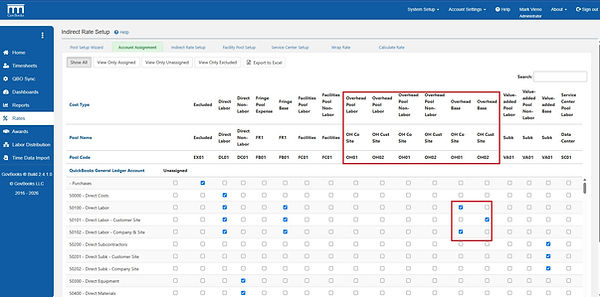
After setting up the overhead base accounts, assign the overhead expense accounts to the Overhead Pools. Overhead expense accounts require an assignment to allocation pools because overhead expense will be applied to projects based on the composition of the allocation base. Overhead labor accounts should be assigned to their appropriate fringe base but do not need to be assigned to the G&A, B&P or IR&D bases because overhead will be automatically allocated.

Step 13: Assign value-added expense accounts
If you set up one or more value-added pools (see Step 6 above), assign the value-added allocation base accounts to the Value-added Pools. Value-added allocation base accounts will be used to allocate value added expenses to projects. A typical scenario is to exclude direct subcontractor costs and/or direct material costs from the G&A base and create a Value-added Pool. This has the effect of lowering the markup on subcontractors and materials creating a more competitive pricing scenario when a large portion of the business is related to these costs. GovBooks helps to prevent an inappropriate allocation of G&A expense to the value-added base accounts by not allowing a value-added allocation base account to be simultaneously assigned to the G&A base.

After setting up the value-added allocation base accounts, assign the value-added expense accounts to the Value-added Pools. Value-added expense accounts require an assignment to allocation pools because value-added expense will be applied to projects based on the composition of the allocation base. Value-added labor accounts should be assigned to their appropriate fringe base.

Step 14: Assign service center expense accounts
If you set up one or more service center pools (see Step 7 above), assign the service center expense accounts to the Service Center Pool. Service center expense accounts do not require an assignment to allocation bases because service center expenses will be automatically applied to other indirect pools based on the allocation percentages entered into the Service Center Setup screen.

Step 15: Assign G&A expense accounts
General and administrative expenses (G&A) are company-wide expenses that would typically exist regardless of project activity. Only one G&A pool is allowed in government contracting and therefore it is automatically set up as a pool in GovBooks. Assign the appropriate accounts to the G&A pool and its allocation base.

Step 16: Assign B&P/IR&D expense accounts
Bid and Proposal (B&P) and Independent Research and Development (IR&D) expense accounts have a special treatment with regards to the application of overhead, in essence treating them similar to direct labor. Assign the appropriate accounts to the B&P and IR&D pools. If an account is for labor, include it in the fringe base. You should not include these accounts in the overhead pools or bases or G&A pools or bases, since the overhead allocations and adjustments are handled automatically.

Step 17: Assign unallowable expense accounts
Unallowable expenses are those expenses which are not allowed to be billed to the federal government, either directly or indirectly. Assign accounts as appropriate. If a labor account, also assign it to the fringe base. Assign accounts to the G&A base and Overhead base in accordance with your company's policy.

Step 18: Assign excluded accounts
You may want to exclude certain accounts altogether from the computation of indirect rates. In this case, assign the accounts to the Excluded column.
