.png)
Entering Time with GovBooks Timesheets

What is a Charge Code?
A charge code is a generic term for a code that is placed on a timesheet to enable the Time User to enter and record the amount of time they have spent on its associated activity. A charge code could be a billable project, a non-billable internal project, indirect labor, or paid leave. A charge code can be used to track time on a CLIN (contract line item number), task, phase, milestone, job, or any other break down of an activity.
How do I add a Charge Code to a Timesheet?
There are three methods to add a charge code to a timesheet. The first method is to click on the "Add Charge Code" button which then displays a drop down field in the timesheet from which you can select the appropriate charge code. The second method is to click on "Add All Charge Codes" which will populate all of the assigned charge codes onto the timesheet. An administrator assigns which charge codes should be available for selection. The third method is to click on the "Copy Previous" button which will add the charges codes that were added to the timesheet from the previous time period (hours are not added because you will need to add these each day you work to be DCAA compliant).

What if I do not see the charge code I should be charging to?
Contract your administrator or supervisor. They will need to assign the charge code to you first before you are able to add the charge code to your timesheet.
How do I enter time?
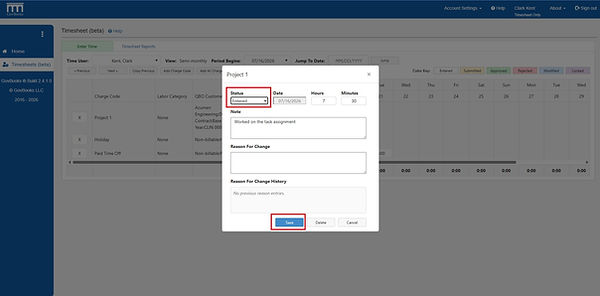
Move your cursor over the timesheet grid to highlight an entry cell for the appropriate date and charge code and click into the cell. A pop-open window will appear which will allow you to enter your time. Enter the number of hours as a whole number and the number of minutes in the separate minute field. You may enter optional notes. When completed, click the "Save" button.

How do I submit time for approval?
There are two methods available for submitting time for approval. The first method is to submit each time record separately by editing the time record and changing the "Status" to "Submitted" and then clicking on the "Save" button. To edit a time record, click on its cell in the timesheet grid.

The second method to submit time it to click the "Submit All" button which will submit all time records that are in an "Entered" Status.

Why should I submit time for approval?
Whether or not you should submit your time for approval is a matter of your company's timekeeping policy. In general, most companies appoint one or more timesheet approvers who will review, approve or reject your time records. Your company may need your time to be approved before it can process payroll, invoice its customers, or finalize its accounting for labor costs.
How do I know if my time has been submitted?
There are three methods to verify if your time records have been submitted. The first method is to view the "Enter Time" screen. Submitted time will be high-lighted in yellow. Unsubmitted time will be highlighted in white.

The second method to verify if your time records have been submitted is to click on an entry cell, which opens the time record, and check the "Status" field.

The third method to verify if your time records have been submitted is to run a Time Report for the time period and view the Status.

How do I unsubmit time records that I have already submitted?
You can unsubmit your time if it has not yet been approved. There are two methods. If you want to unsubmit all the time records on a timesheet at the same time, you can click the "Unsubmit All" button.

The second method to unsubmit your time is by editing each time record. This method allows you to unsubmit only the time records that are required without having to unsubmit the entire timesheet. Click in the entry cell of the time record to be unsubmitted and change the "Status" to "Entered" and then click the "Save" button.
How do I delete a time record?
There are two methods to delete a time record. The first method is to click in an entry cell and open the pop-up window and click the "Delete" button. It is only possible to delete a time record with an "Entered", "Submitted" or "Rejected" status. You cannot delete a time record with an "Approved" or "Modified" status. When the "Delete" button is clicked, you will be required to enter a reason for the change. This is a DCAA requirement.

The second method to delete a time record is to click on the "X" at the beginning of the time entry line which will delete the entire line on the timesheet. You will only be able to delete a line if all of the time records on the line are either in an "Entered", "Submitted" or "Rejected" status. If any of the time records on the line are in an "Approved" or "Rejected" status you will not be able to delete the line
